Google Search Console is free, yet most marketers either don’t use it or waste time on metrics that don’t matter. This guide shows you how to set up Search Console correctly, connect it to Google Analytics 4, and focus on the data that actually improves your search visibility.
Skip the vanity metrics. I’ll show you the specific reports and actions that identify ranking opportunities, fix technical issues costing you traffic, and understand what’s working in your SEO efforts. Setup takes 30 minutes. The insights are worth thousands in avoided mistakes and captured opportunities.
Why Search Console Matters More in 2026
Search has fragmented. Google now shows AI Overviews, featured snippets, People Also Ask boxes, and traditional blue links—all competing for attention. Search Console is the only tool that shows you how your content appears across these formats and where you’re losing visibility.
The tool tells you which queries trigger your pages, your average position for each keyword, and your click-through rate at each position. This data reveals opportunities competitors miss: keywords where you rank position 8-12 that could reach page one with minor improvements, or queries where you rank well but have terrible click-through rates, indicating title/description problems.
Most importantly, Search Console flags technical issues preventing Google from crawling or indexing your content. A single technical error can hide your entire site from search. Search Console catches these problems before they cost you traffic.
Create and Verify Your Property
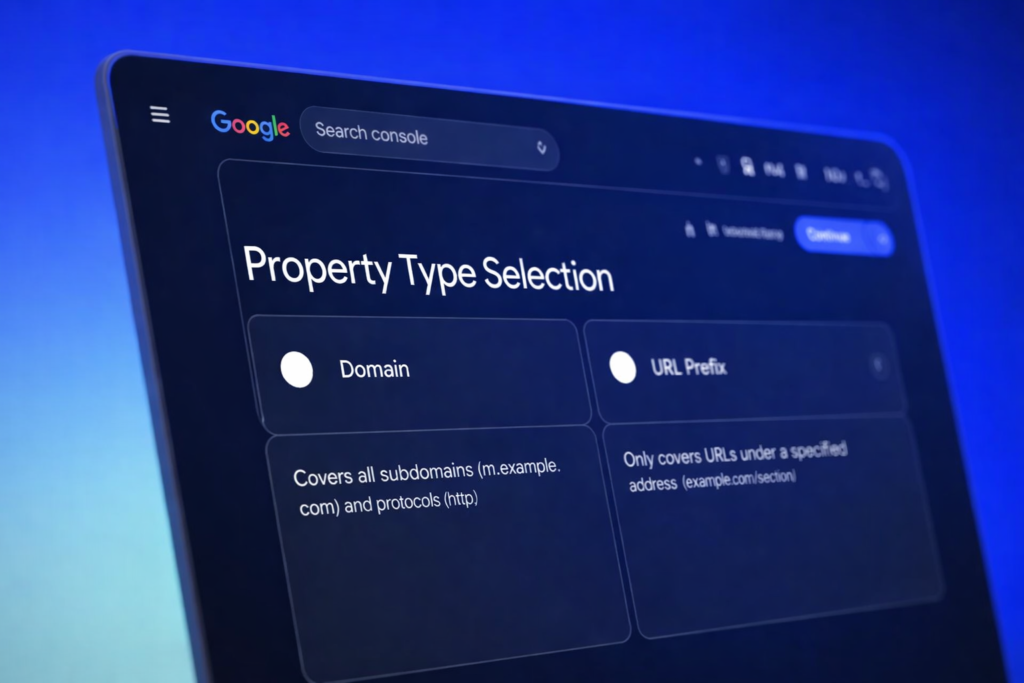
Go to search.google.com/search-console and sign in with your Google account. You’ll choose between two property types: Domain property or URL prefix property.
Use Domain property if you want to track all versions of your site (http, https, www, non-www) in one place. This requires DNS verification through your domain registrar. You’ll add a TXT record to your DNS settings—sounds technical, but it takes five minutes.
Use the URL prefix property if you only want to track one specific version (like https://www.yoursite.com). This works with multiple verification methods: HTML file upload, HTML tag, Google Analytics, or Google Tag Manager.
My recommendation: Set up the Domain property. It’s slightly more setup work, but it gives you complete data without worrying about which URL version people use.
Domain Property Verification Steps
- Enter your domain without http/https or www (just “yoursite.com”)
- Search Console generates a TXT record
- Log in to your domain registrar (GoDaddy, Namecheap, Cloudflare, etc.)
- Find DNS settings or DNS management
- Add a new TXT record with the code Search Console provided
- Wait 5-60 minutes for DNS propagation
- Return to Search Console and click Verify
DNS changes can take up to 24 hours to propagate globally, but usually complete within an hour. If verification fails immediately, wait 30 minutes and try again.
URL Prefix Verification Steps (Alternative)
- Enter your full URL, including https:// and www (or non-www)
- Choose verification method:
- HTML file: Download the file, upload to your site’s root directory
- HTML tag: Add the meta tag to your homepage header
- Google Analytics: If GA4 is already installed and you have admin access
- Google Tag Manager: If GTM is already installed and you have publish rights
- Click Verify
Pro tip: Verify using multiple methods. If one breaks (you redesign the site and remove the HTML tag), verification stays active through the other methods.
Connect Search Console to Google Analytics 4
This connection lets you see Search Console data inside GA4 and vice versa. The integration reveals which organic search queries lead to conversions, not just traffic.
In Google Analytics 4:
- Go to Admin (bottom left gear icon)
- Under the Property column, click “Product Links.”
- Click “Search Console Links”
- Click the “Link” button
- Choose your Search Console property
- Select your GA4 web data streams
- Click “Next” then “Submit.”
The connection takes 24-48 hours to start showing data. Once active, you’ll see Search Console reports under Acquisition > Search Console in GA4.
Why this matters: GA4 shows you what happens after the click. Search Console shows you what happens before. Together, you see which keywords not only drive traffic but also convert. Focus SEO efforts on keywords that do both.
Understanding the Performance Report
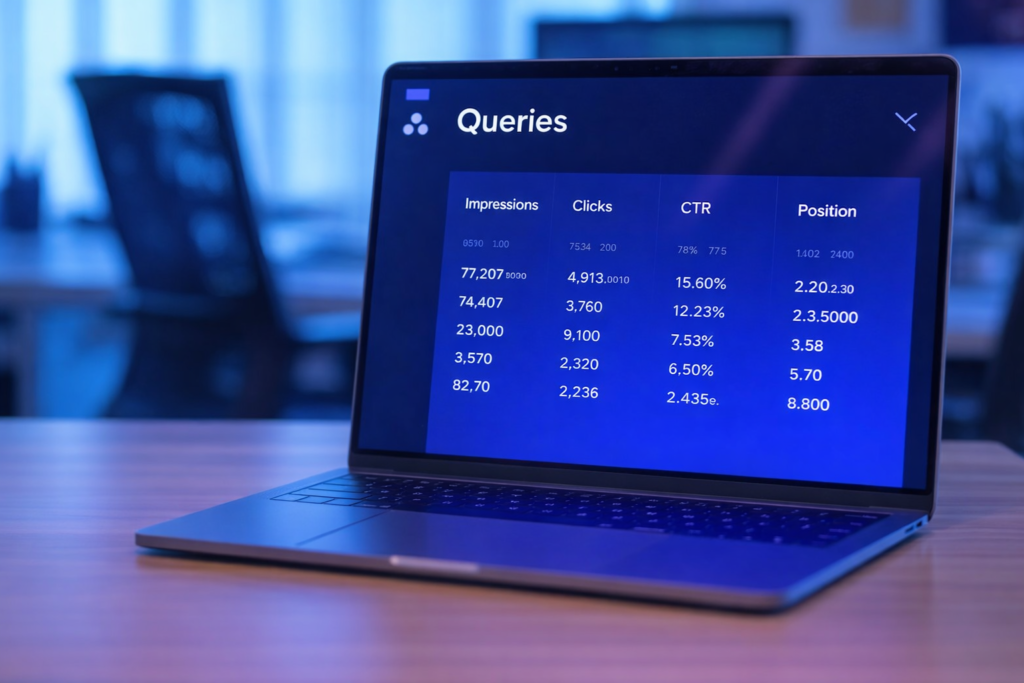
The Performance report is where you’ll spend most of your time. It shows four key metrics:
- Total clicks: How many times people clicked your result in search.
- Total impressions: How many times your result appeared in search.
- Average CTR (click-through rate): Clicks divided by impressions.
- Average position: Your average ranking position (1 = top result)
These metrics interconnect. High impressions with low clicks mean you’re ranking, but your title/description isn’t compelling. A high position with low CTR means you rank well, but aren’t earning the click.
The Queries Report: Find Easy Wins
Click the “Queries” tab to see which search terms trigger your pages. Sort by impressions (not clicks) and look for:
- High impressions + Position 8-15: You’re on page one or two. Small improvements could reach top positions. Create better content, improve page speed, add schema markup, and build a few backlinks.
- High impressions + Low CTR: Your ranking is fine, but the title/meta description isn’t compelling. Rewrite them to better match search intent and include compelling benefits.
- Position 1-3 + Below-average CTR: You rank well but aren’t earning clicks proportional to position. Competitors have better titles, featured snippets, or rich results. Study their results and improve yours.
Filter by position: “Position is less than 10” to see page-one keywords. These are your best optimization opportunities because you’re close to the top positions already.
The Pages Report: Find Content Gaps
Click the “Pages” tab to see which URLs get the most search visibility. Sort by impressions.
- High-performing pages: These are winning. Analyze what they do well. Can you create similar content for related topics?
- Underperforming pages: Pages you expected to rank but don’t appear here. They might have technical issues, target keywords that are too competitive, or lack comprehensive coverage.
Click any page to see which queries trigger it. This reveals if pages rank for unintended keywords (opportunities to expand content) or completely miss their target keywords (need optimization).
The Countries and Devices Reports: Spot Trends
Check if mobile vs desktop performance differs significantly. If mobile CTR is much lower, your mobile titles might be getting cut off, or your mobile experience is poor.
Geographic data shows where your visibility is strongest. If you’re targeting specific regions but getting impressions elsewhere, your content might need better geographic signals, or you’re ranking for unintended queries.
Critical Technical Issues to Fix First
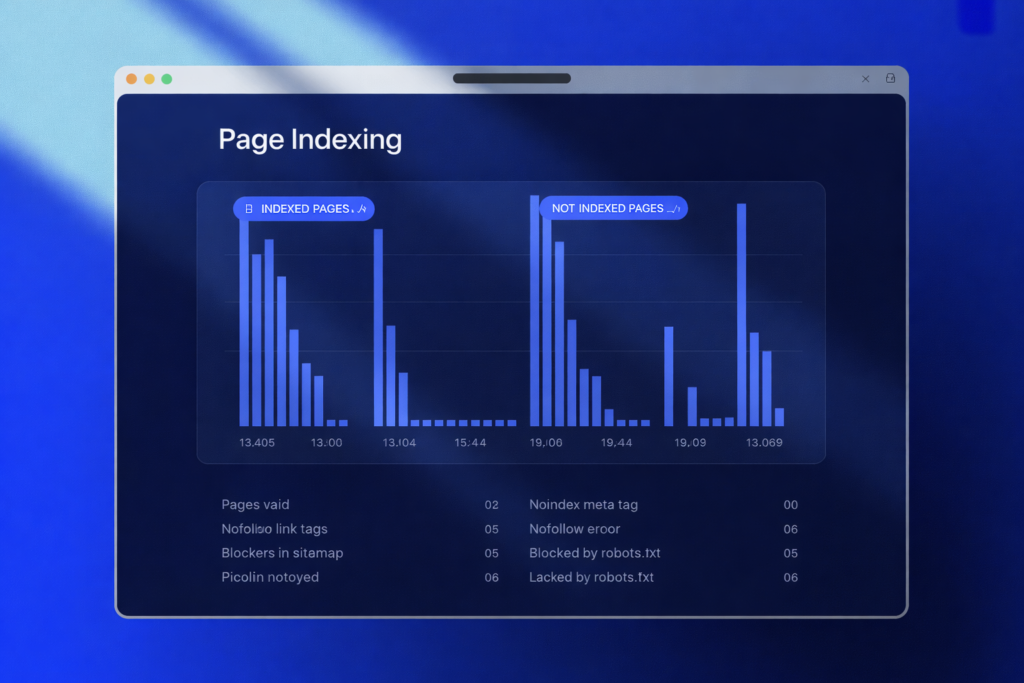
The Page Indexing report shows whether Google can access and index your content. Check this weekly, especially after site updates.
- Not indexed: Crawled – currently not indexed. Google crawled the page but chose not to index it. Usually means thin content, duplicate content, or low quality. Improve content comprehensiveness or consolidate with similar pages.
- Discovered – currently not indexed. Google found the URL but hasn’t crawled it yet. Usually means low internal linking or insufficient crawl budget. Add internal links from important pages.
- Page with redirect. The URL redirects to another page. This is fine for intentional redirects, but check for redirect chains (page A → page B → page C) that waste crawl budget.
- Not found (404) The page doesn’t exist. If these are old deleted pages with backlinks or search history, set up 301 redirects to relevant current content.
- Blocked by robots.txt. You’re actively blocking Google from crawling this page. If it should be indexed, remove the robots.txt block.
- Server error (5xx) Your server is returning errors. Fix immediately—this prevents all crawling.
Check the Page Indexing report after any major site changes: new CMS, site redesign, HTTPS migration, or URL structure changes. Catch indexing issues within days instead of months.
Core Web Vitals: Speed Matters
The Core Web Vitals report shows whether your pages meet Google’s page experience standards. These metrics directly impact rankings, especially for competitive queries.
- Largest Contentful Paint (LCP): Should load within 2.5 seconds. If failing, optimize images, reduce server response time, or use a CDN.
- Interaction to Next Paint (INP): Should respond to interactions within 200 milliseconds. If failing, reduce JavaScript execution time.
- Cumulative Layout Shift (CLS): Should be below 0.1. If failing, set size dimensions on images and ads to prevent content jumping as the page loads.
Focus on pages marked “Poor” that also get significant traffic (check Performance report). Fixing high-traffic, poor pages has an immediate impact. Fixing zero-traffic, poor pages can wait.
Use Google’s PageSpeed Insights tool for specific recommendations on what to fix for each failing page.
Manual Actions and Security Issues
Check these sections immediately after setup and monthly thereafter.
- Manual Actions: Google has manually penalized your site for violating guidelines. This is serious—your rankings will tank until resolved. Follow the instructions to fix issues and submit a reconsideration request.
- Security Issues: Google detected malware, hacking, or phishing. Fix immediately. Your site may be blocked from search entirely or shown with warning messages that destroy click-through rates.
Most sites will see “No issues detected” in both sections. If you see issues, prioritize fixing them above everything else.
Links Report: Understand Your Backlink Profile
The Links section shows:
- Top linking sites: Which domains link to you most
- Top linking pages: Which external pages link to you
- Top linked pages: Which of your pages get the most backlinks
Review this monthly to:
- Identify spammy backlinks (use Google’s Disavow tool if needed)
- See which content attracts links naturally (create more like it)
- Find broken backlinks (URLs giving 404s but have links pointing to them—redirect these)
The report also shows internal linking data. Pages with few internal links might be hard for Google to discover and rank. Add links from related content.
Settings That Matter
Users and Permissions
Add anyone who needs access: developers, SEO specialists, marketing team members. Use restricted access for people who only need to view data, not change settings.
- Owner level: Full control, including adding/removing users.
- Full user: View all data and take most actions
- Restricted user: View most data, but can’t manage users or submit sitemaps
Sitemap Submission
Submit your XML sitemap to help Google discover all your pages efficiently. Your sitemap URL is usually yoursite.com/sitemap.xml.
Go to Sitemaps (left sidebar) → Enter sitemap URL → Click Submit
Google will report how many URLs it discovered from the sitemap and any issues encountered. Check this monthly. If submitted URLs don’t match indexed pages significantly, investigate why Google isn’t indexing your content.
URL Parameters
If your site uses URL parameters (like ?ref=email or ?sort=price), configure how Google should handle them. Incorrect settings cause duplicate content issues.
Most modern sites don’t need this section. E-commerce sites with filtering/sorting parameters should configure this carefully.
Your Weekly Search Console Routine
Monday morning (10 minutes):
- Check Performance report for last 7 days vs previous period
- Identify queries with biggest impression drops (possible ranking loss)
- Check Page Indexing for new errors
- Review Core Web Vitals for new failing pages
Monthly (30 minutes):
- Export top 100 queries to spreadsheet
- Compare to last month—what improved, what declined
- Identify 5-10 keywords ranking position 8-15 (optimization targets)
- Review top-performing pages—what topics work well?
- Check for manual actions, security issues, new backlinks
Common Mistakes to Avoid
- Tracking wrong property: If you use www.yoursite.com but only verified yoursite.com (or vice versa), your data will be incomplete. Domain properties solve this.
- Ignoring mobile data: Filter to mobile-only to see if mobile rankings or CTR differ significantly from desktop. Mobile-first indexing means mobile performance matters more.
- Obsessing over average position: Position 3.2 vs 3.5 doesn’t matter. Focus on queries where position changes affect traffic significantly (moving from page 2 to page 1).
- Not checking after site changes: Site migrations, redesigns, or CMS changes often break indexing. Check Search Console daily for a week after major changes.
- Compared to wrong date ranges: Search is seasonal. Compare to the same period last year, not last month, for accurate trend analysis.
What Success Looks Like
After proper setup and monthly monitoring, you’ll:
- Catch technical issues within days instead of months
- Identify ranking opportunities (keywords at position 8-15)
- Understand which content types Google favors
- See which keywords drive traffic that actually converts (via GA4 integration)
- Spot CTR problems indicating title/description issues
Search Console won’t magically improve rankings. It shows you what to fix and where opportunities exist. Execution still requires creating better content, fixing technical issues, and building authority.
But without Search Console, you’re optimizing blind. With it, you’re making data-driven decisions about where to focus efforts.
Set it up correctly once. Check it weekly. Act on what it reveals. That’s how you use Search Console for 2026 success.


Leave a Reply